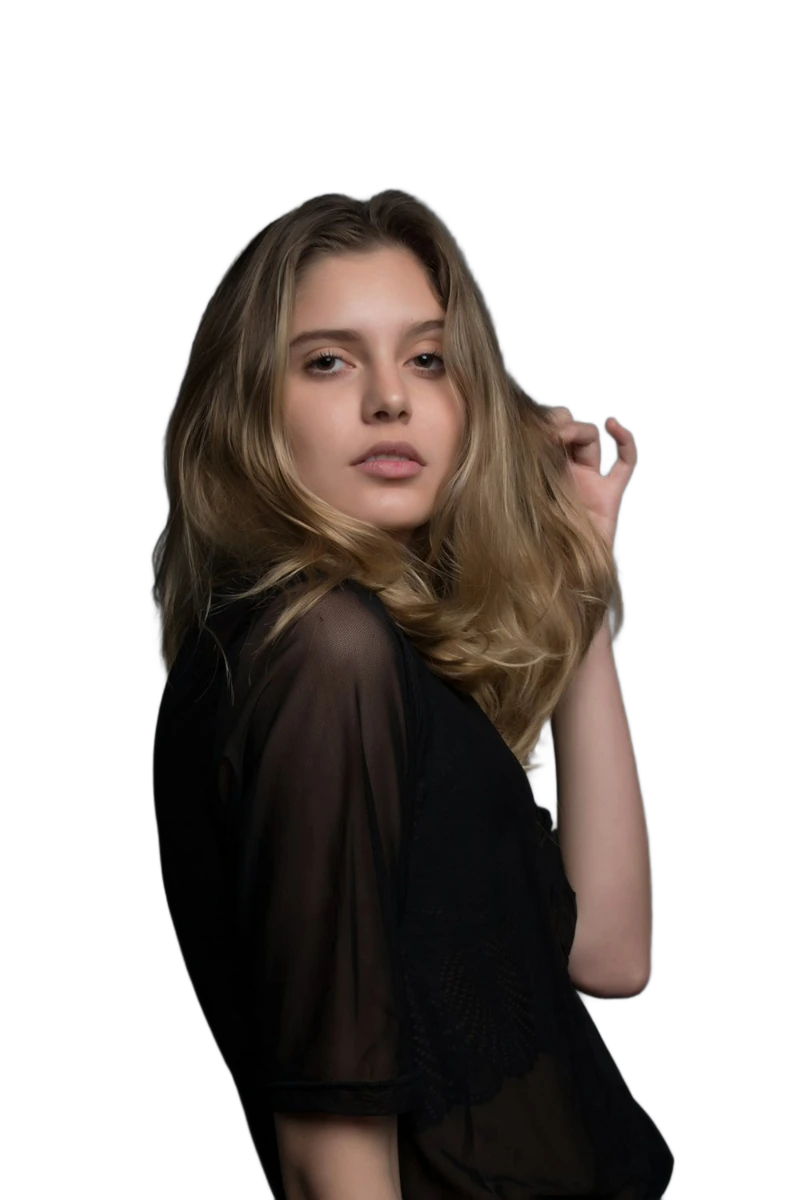
Remove the background around your hair while keeping the portrait in focus. Compare fine strands against light and dark backgrounds before saving the cutout.
BeforeAfter
‹ ›
Prepared example, not a guarantee of your result. Compare the hairline and flowing strands against both light and dark backdrops. Missing fine hair can change the outline. Source photo
YOUR CREATIVE SPACEIMAGE STUDIO
Start with your image.
Open your photo in the background-removal editor.
or drop your image hereJPG, PNG, WebP · Up to 10 MB
Preparing…
Your photo stays on your device.
YOUR WORKFLOW
Prepare. Compare. Export.
01
Choose a complete source photo
Use an in-focus photo where hair stands out from the backdrop. Motion blur, backlighting and hair matching the wall colour make separation harder. Fine strands may be lost; background removal cannot reliably recreate hair that is absent from the result.
02
Inspect the result
Inspect the hairline, loose strands and spaces between curls. Look for a pale halo on a dark backdrop and dark fragments on a pale backdrop. Compare the overall hair volume with the source.
03
Choose your finish
Open the editor, compare the cutout with the original, and choose a transparent or solid background. Export PNG when you need transparency. Keep your original photo for comparison.
Frequently asked questions
Does this remove hair from a photo?
No. This page removes the surrounding background from a portrait with hair. It is not a hair-removal, hairstyle or hair-colour editing tool. Inspect the cutout carefully because fine strands can be missed.
What if part of the subject disappears?
Try a sharper source with more contrast between the subject and its surroundings. Background removal cannot recover parts cropped out of the original, and difficult edges may need another photo or a separate editing tool.
Where is my photo processed?
Background removal runs in your browser. The model must load before processing; time depends on your device and the image. This prepared sample is separate from your own photo.
How do I check the downloaded image?
Place the export on the background you intend to use. Inspect it at the final display size as well as enlarged. Keep PNG for transparent areas; a JPG export has a solid background.